Import Reports from PDFs
Bring your old service reports into Aqualytics by dragging and dropping their PDFs
Switching to a new reporting tool shouldn’t mean starting over. Your customers’ history (months or years of test results, control ranges, and notes) lives in the PDFs you’ve already sent. Now you can drag those PDFs into Aqualytics, and each one becomes a report you can edit.
Drop in a Stack of PDFs
On an account’s Reports page, open the menu beside New report and choose Import reports from PDFs. Then drag in as many PDFs as you like (or click choose files):
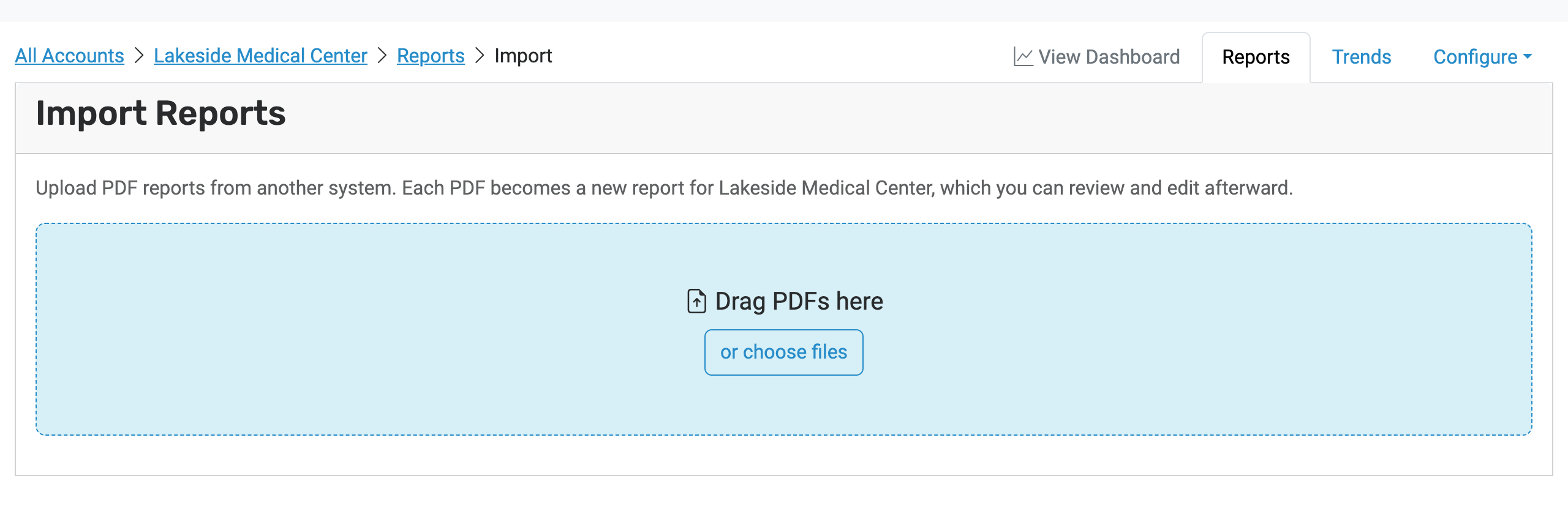
Each file uploads with its own progress bar, then Aqualytics reads it in the background. You can keep working while it runs, and the list updates as each report is ready.
See What Came Over
Each import shows a summary of what Aqualytics found in the PDF, along with anything worth double-checking:
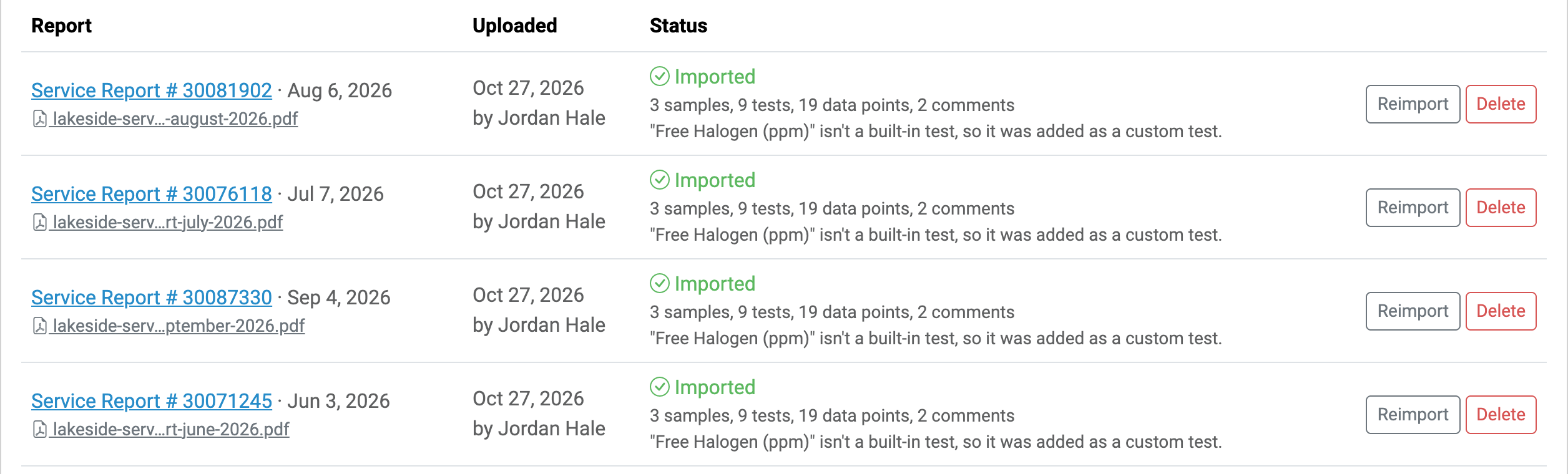
Aqualytics brings over:
- Samples, with their groups and names, like “Cooling Tower 1” or “Chilled Loop”
- Test results for each sample, in the same order as the original report
- Control ranges, including min-only and max-only ranges
- Comments, with their paragraphs, photos, and sign-offs
- The report’s title and date, so it shows up in the right place in the account’s history
When a test in the PDF matches one of Aqualytics’ built-in tests, it’s imported as that test, even if the old tool spelled it differently. Other tests are added as custom tests, and the import tells you which ones.
Review and Edit
Click the report’s title to open it in the report editor, just like a report you made yourself:
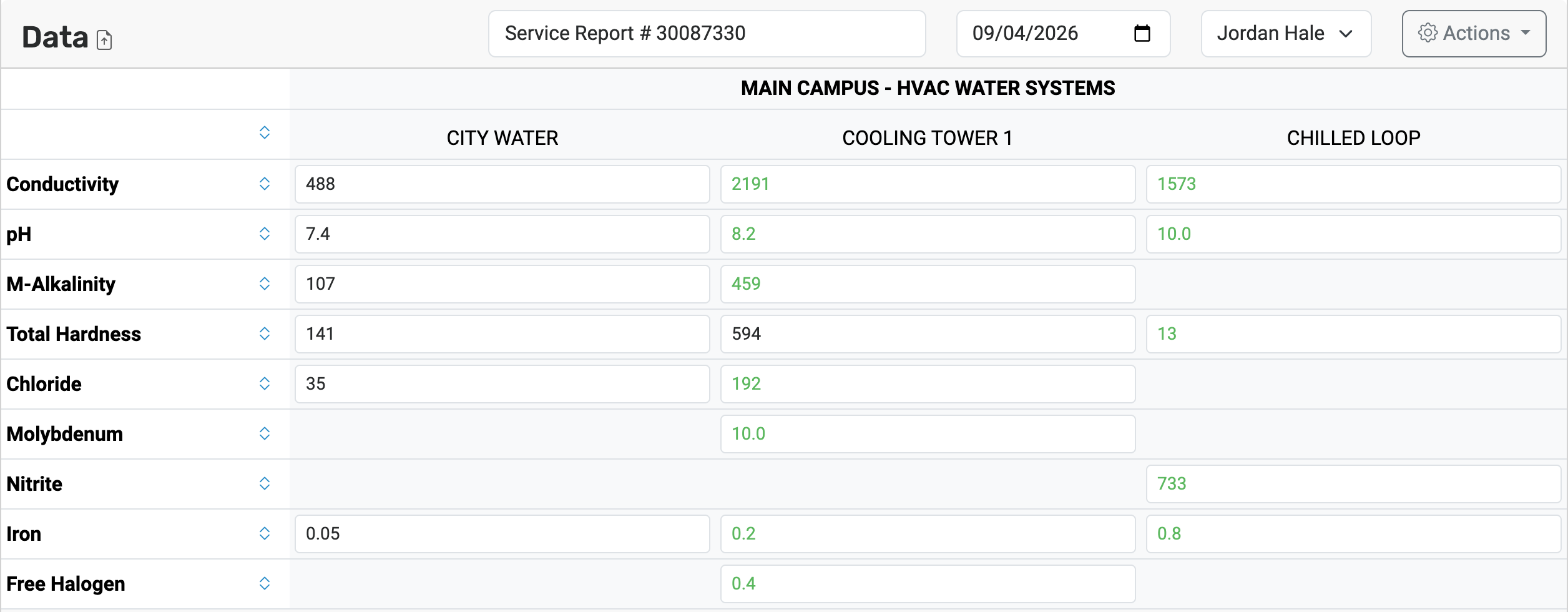
Results are checked against the imported control ranges, so out-of-range values are already flagged. Fix anything that didn’t come through quite right, add trends, and it’s ready to go.
Your History, Ready for Trends
Imported reports are matched to the samples and tests that are already in the account. When you import a series of reports for the same customer, their results line up from one report to the next, so you can chart trends that go back to before you switched to Aqualytics.
If you import the same file twice, Aqualytics will let you know. If something doesn’t look right, Reimport reads the PDF again, and Delete removes the import and the report it created.
Give it a Try
PDF import reads a growing list of report formats from other tools. If your old reports come from a tool that isn’t supported yet, send us a sample and we’ll take a look!
Ready for better service reports?
Get started with the best software for water treatment service reports.
Start a 30-day free trialPrefer to talk first? Schedule a call