Aqualytics Plugin for Chatbots
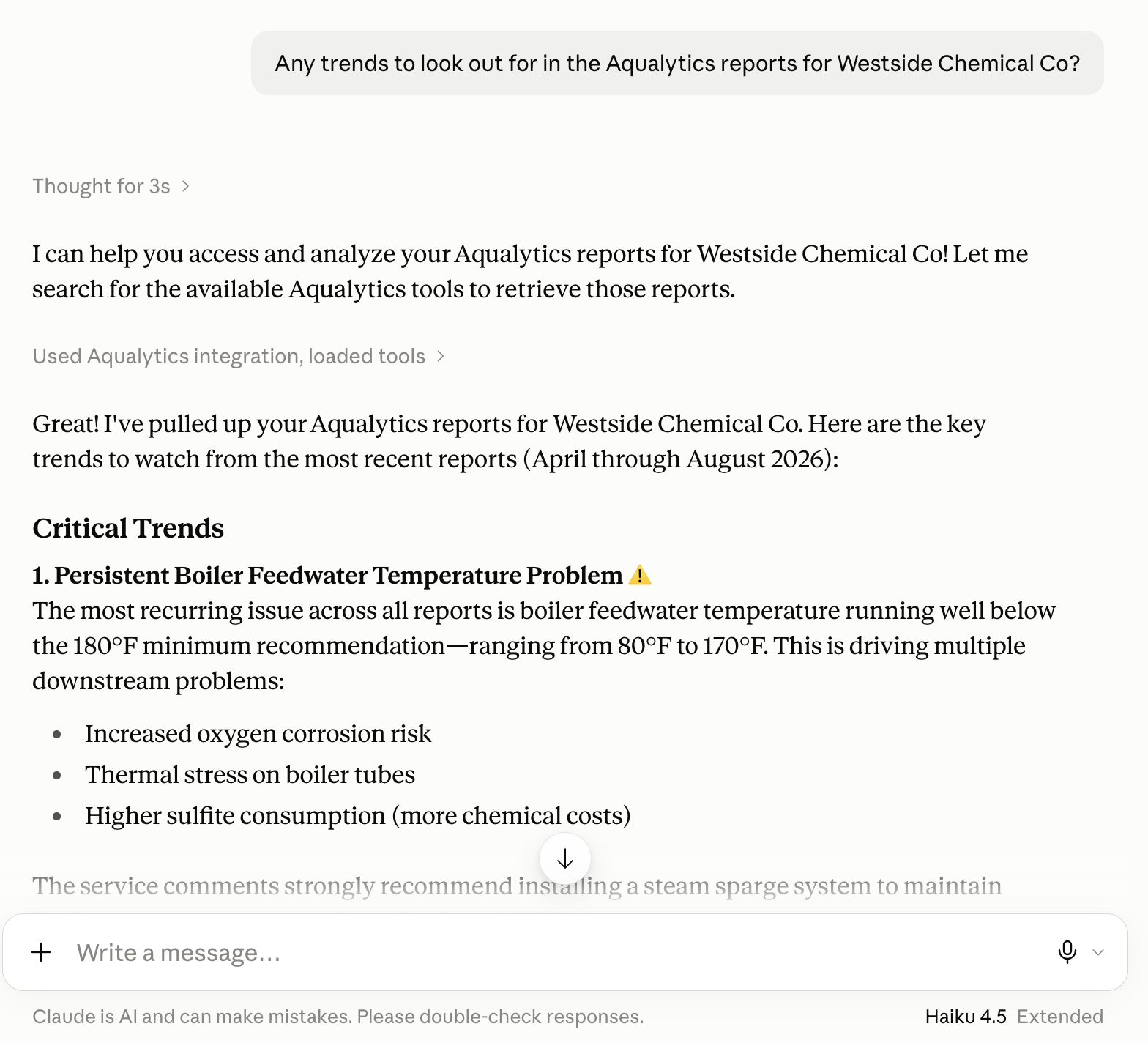
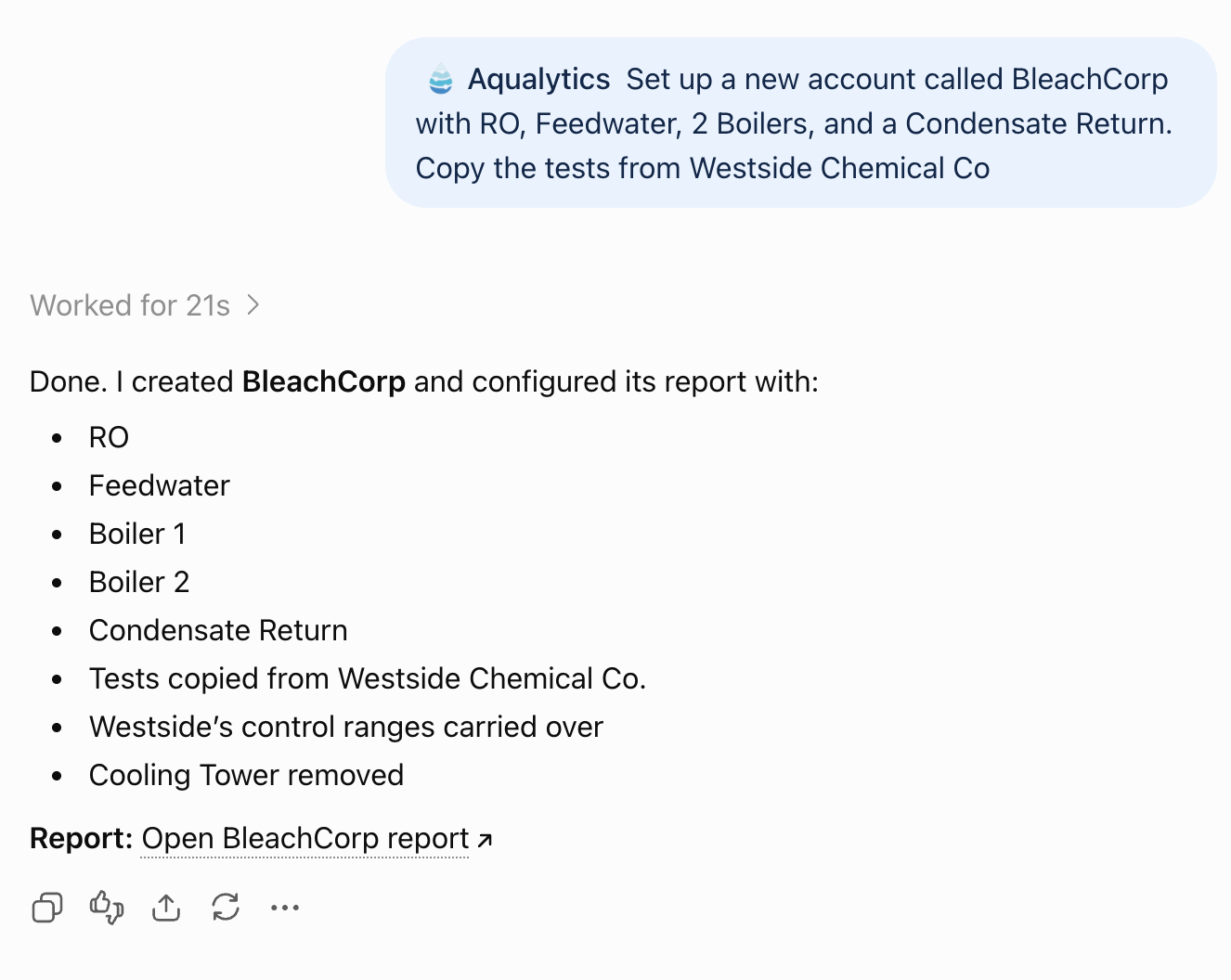
Want a second pair of “eyes” on data trends in your account? Do you have a new account to set up? Now you can connect Aqualytics to Claude, ChatGPT, or another LLM chatbot of your choice.
How it Works
Aqualytics supports a communication standard called Model Context Protocol (MCP) which allows AI tools to communicate directly with Aqualytics on your behalf. It’s a bridge between Aqualytics and your AI tool.
Once it’s set up, your tool can work with Aqualytics to respond to prompts like:
- “Which accounts haven’t received a report this month?”
- “Add a 6-month trend line for boiler cycles to the latest report for Central Milling”
- “Set up a new account based on this uploaded report”
- “What trends do you see at United Steel over the last 12 months?”
- “Create a new report with these test results: …”
- “Create a new account and backfill with these old reports: …”
Heads Up! Adding the MCP plugin authorizes your chat bot to do anything you can do. See Data and Security for details.
Setup
To get started, add Aqualytics to ChatGPT, Claude, or another AI tool.
ChatGPT
To add Aqualytics to ChatGPT, open ChatGPT Plugins, click the ”+” button, then choose “Add custom MCP server”:
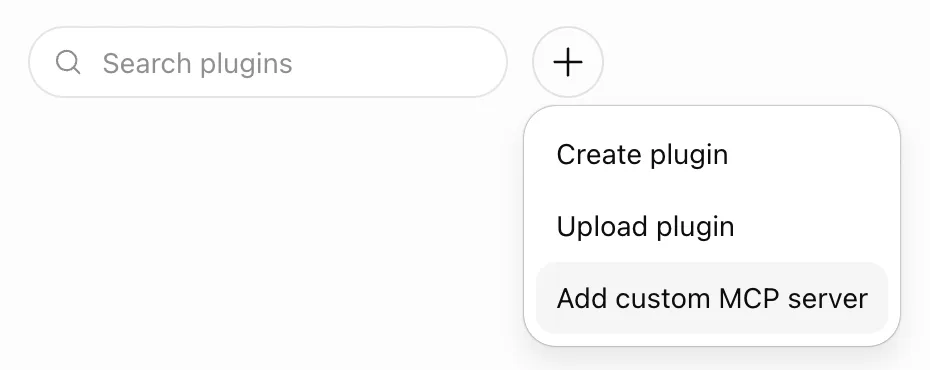
(Don’t see “Add custom MCP server”? Custom plugins aren’t available on every ChatGPT plan. If your account belongs to a company workspace, an admin may need to turn them on. Alternatively, enable “developer mode”.)
Click “Create MCP App”:
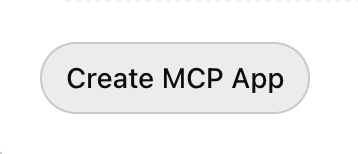
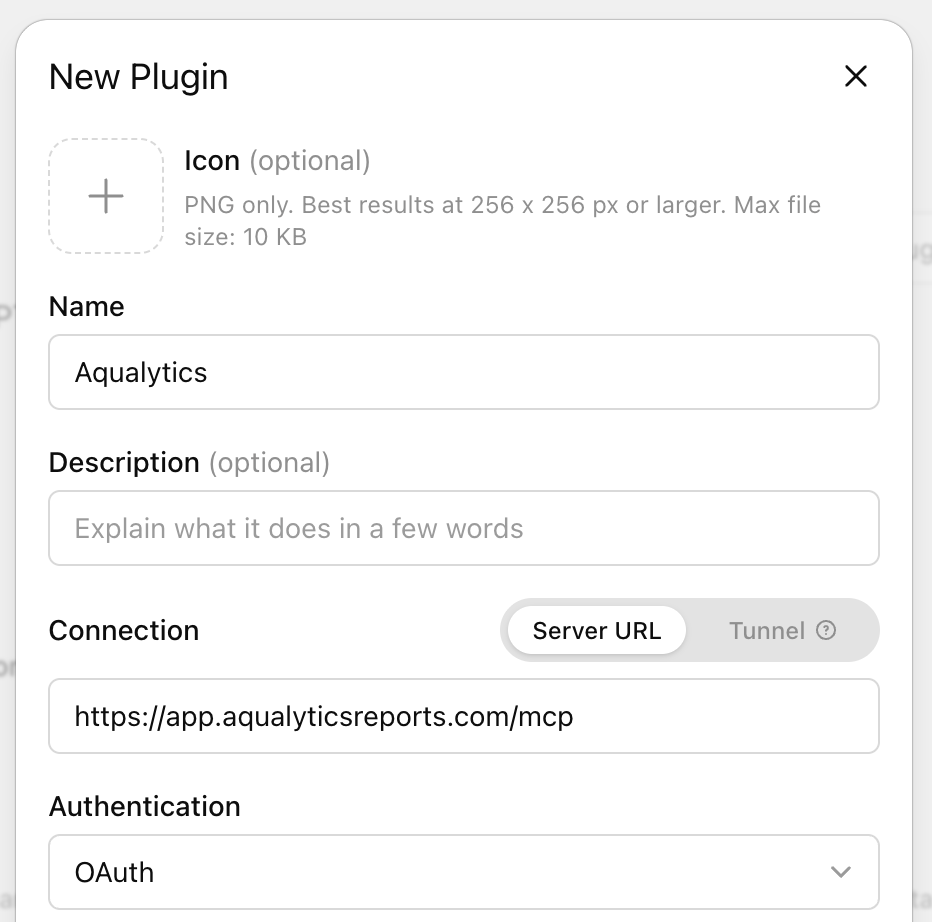
Fill in “Aqualytics” for the name. Under “Connection”, enter “https://app.aqualyticsreports.com/mcp” as the server URL, and choose “OAuth” for authentication.
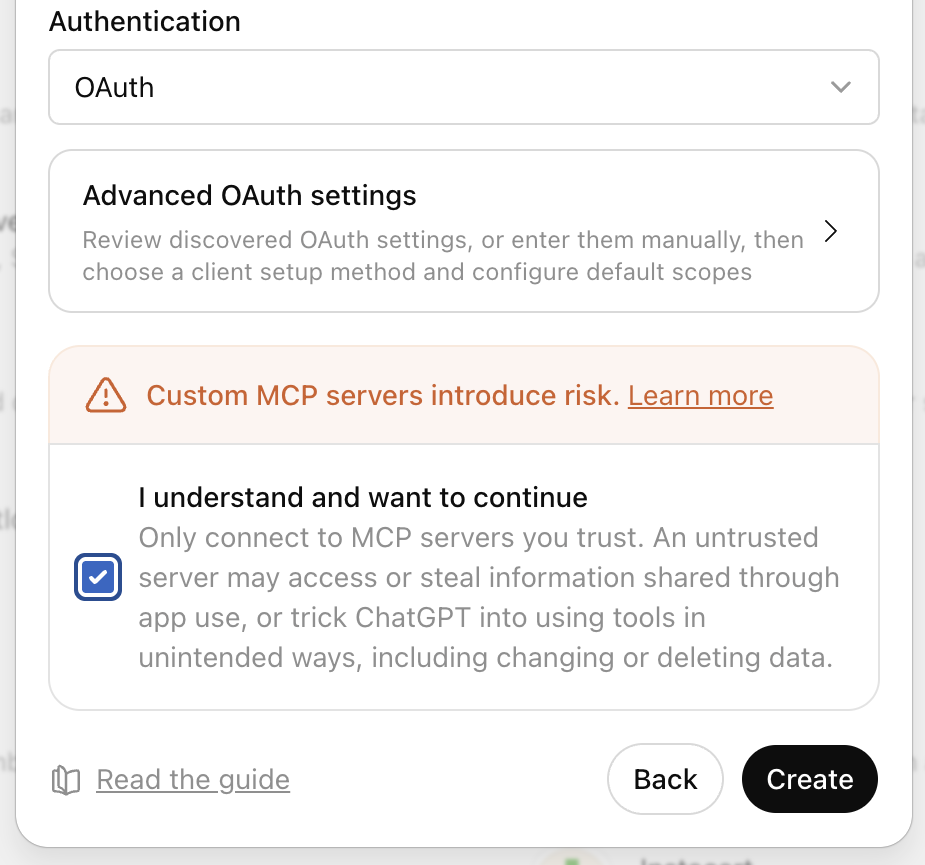
ChatGPT will show a warning about connecting to custom servers. Click “I understand and want to continue” then “Create as a plugin”.
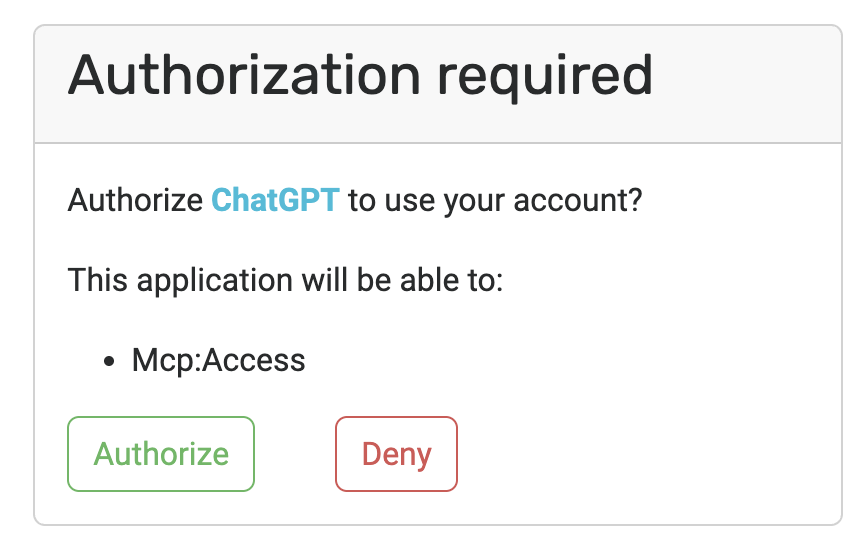
Next, open the new Aqualytics plugin and install it. ChatGPT will send you to Aqualytics to sign in and approve the connection. Click “Authorize”.
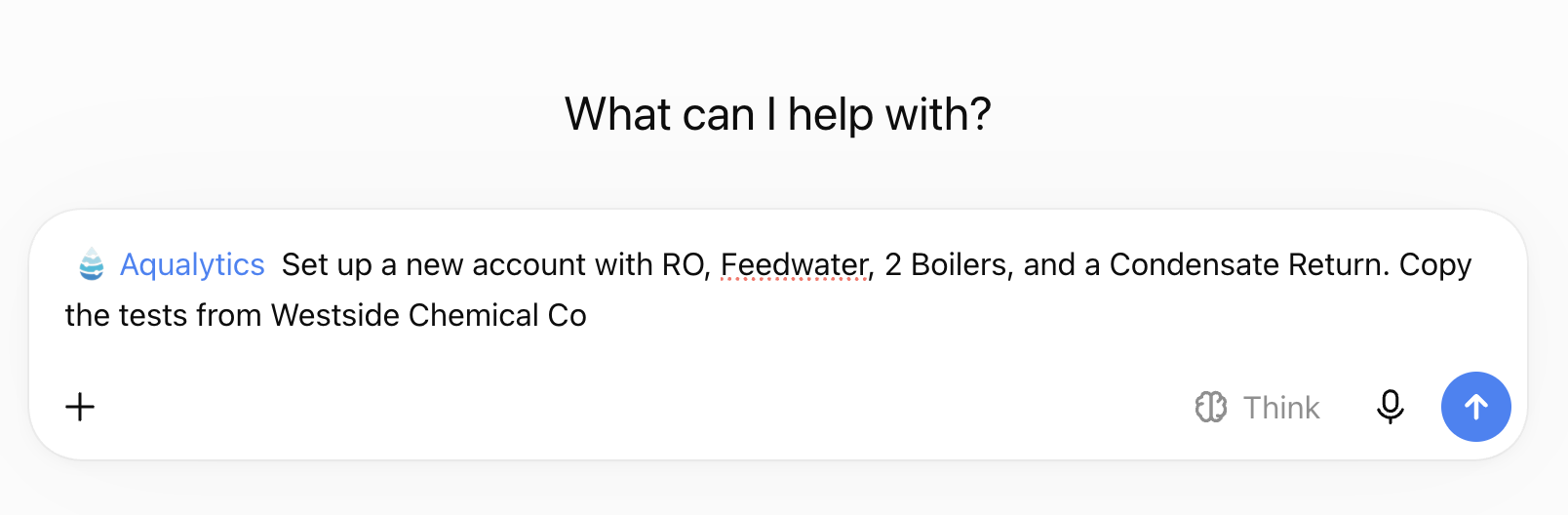
🎉 That’s it! To use it, start a new chat, type ”@”, and pick Aqualytics. Then you can ask ChatGPT about your Aqualytics data, or tell it to edit or create reports and accounts.
Claude
To add Aqualytics to Claude, open “Customize”, then “Connectors”:
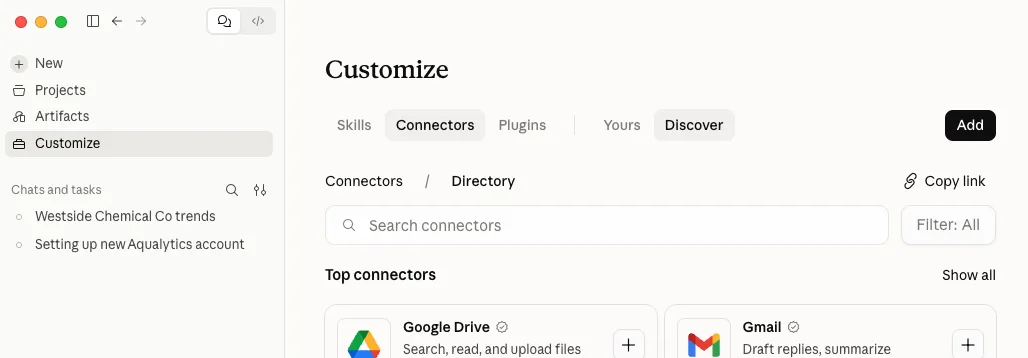
Then click “Add” and fill in “Aqualytics” and “https://app.aqualyticsreports.com/mcp”
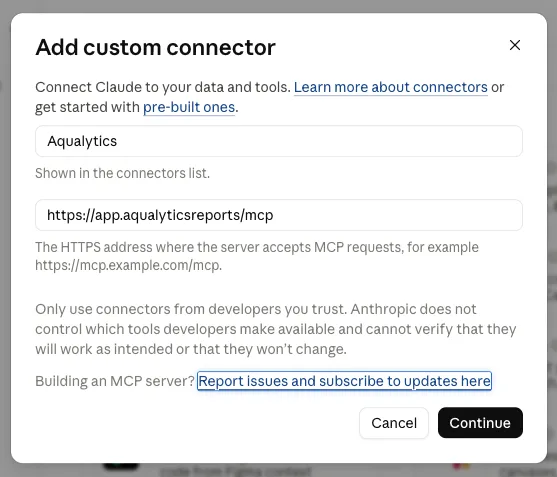
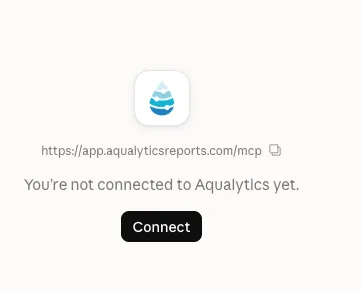
And click “Connect”.
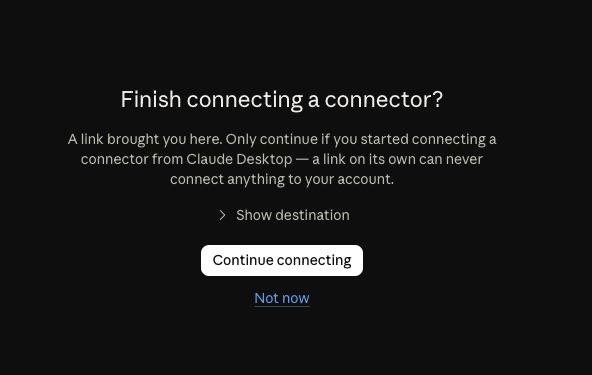
It will ask if you want to finish setting up Aqualytics. Click “Continue connecting”:
Then, it will ask for authorization from Aqualytics. Click “Authorize”:
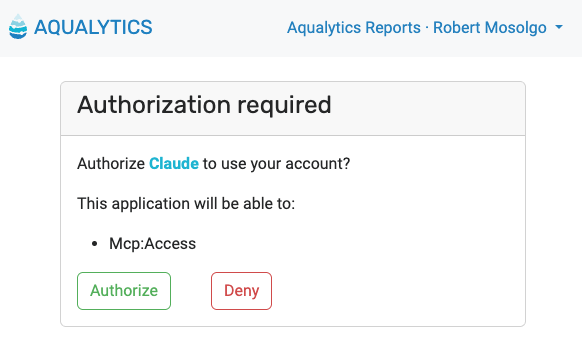
🎉 That’s it! Now you can reference Aqualytics data in your chats with Claude, and you can tell Claude to edit or create reports and accounts in Aqualytics.
Other Chatbots
Aqualytics connects to AI systems as an MCP server. Check your tool’s documentation to see if they support MCP. If they do, you can enter this URL:
https://app.aqualyticsreports.com/mcp
That URL tells the chatbot where to “look” to connect with Aqualytics.
When the chatbot connects for the first time, it will open your browser so that you can sign in to Aqualytics and authorize the plugin. After that, Aqualytics will be available in chat.
If you’re integrating with a certain tool and want to discuss possibilities, feel free to get in touch!
Data and Security
When you connect Aqualytics to an AI tool, that tool may use data according to its own terms. By default, many of these tools collect your data for their own training purposes, but you can usually turn this off. Here are instructions for Claude and ChatGPT. Aqualytics doesn’t use your data for AI training.
When you add Aqualytics to your chatbot, it has all the same authorizations that you do: it can add and remove data of any kind.
Give it a Try
Next time you’re reviewing an account or setting up a new one, connect your chatbot and ask it for a hand. If you have questions or run into trouble getting connected, get in touch and we’ll help you get set up!

Ready for better service reports?
Get started with the best software for water treatment service reports.